February 2026 Monthly Release
For help upgrading to the latest version, contact your Cloudhouse Representative. The following table describes each component available to upgrade within this release of Cloudhouse Guardian (Guardian). For more information on the known issues currently present within Guardian, see Known Issues.
Tip: To access a more simplified view of the changes included within this release, see February 2026 Changelog.pdf.
| Release Date | Guardian Platform | Guardian Web |
|---|---|---|
| 26th February 2026 | V4 | V3.63.0 |
Guardian Web Application V3.63.0
Here's what's included in V3.63.0 of the Guardian web application as part of the February 2026 monthly release.
New Features
The following new features are included within this release of the Guardian web application.
New Best Practice Windows Public Policy
As part of our continued efforts to improve security and guidance, we have introduced a pre-defined 'Windows Best Practice' policy for Windows 10/11 nodes that is automatically applied to the 'Windows' dynamic node group A dynamic node group uses a query-based definition to continuously evaluate nodes. Membership is automatically updated based on whether nodes satisfy the group’s criteria. Some dynamic groups are created by default when a specific node type is added, such as the 'Windows' node group.. The policy is public, non-editable, and shared across all organizations within the Benchmarks tab (Control > Benchmarks). For more information on public policies, see Public Policies.
Tip: Whilst the policy cannot be edited directly, you can clone the policy into a private, editable copy by exporting and re-importing the policy with your changes. For more information, see Export / Import Policy.

If you have any new or existing Windows nodes in your estate, they are automatically added to the dynamic 'Windows' node group, and will now have the 'Windows Best Practice' policy applied by default. As part of this release, each check contained within the policy is to be run during each scan of a Windows node, with the node scan results indicating whether the checks passed or failed - as demonstrated in the screenshot below.
Tip: For more information on the node scan results page and assessing policy compliance, see Policy Compliance.

Once the policy has been run, you can generate a policy report to view the results of each passing and failing check across each Windows node in your estate, to see if they are compliant with our best practice guidelines (which are outlined in the below section).

The following list outlines the checks that are included within the new 'Windows Best Practice' policy:
Note: Since the checks define a recommended configuration state that should be present during the node scan (e.g. anti-malware is enabled); the check will fail if that recommendation is not met (e.g. anti-malware is not enabled), or pass if the recommendation is met (e.g. anti-malware is enabled).
-
Antimalware Enabled – It is recommended that anti-malware is enabled.
-
Antimalware Realtime Protection Enabled – It is recommended that anti-malware realtime protection is enabled.
-
Password History Length – It is recommended that password history length is at least 24 passwords.
-
Password Minimum Length – It is recommended that the password is at least 14 characters long.
-
Failed Lockout Threshold – It is recommended that the fails login threshold is no more 10 failed logins.
-
Guest Account Enabled – It is recommended that the Guest user account is not enabled.
-
Firewall - Domain Profile Enabled – It is recommended that the firewall is enabled for all profiles.
-
Firewall - Private Profile Enabled – It is recommended that the firewall is enabled for all profiles.
-
Firewall - Public Profile Enabled – It is recommended that the firewall is enabled for all profiles.
-
Days Since Last Patch – It is recommended that the system is patched within the past 30 days.
-
SecureBoot Enabled – It is recommended that SecureBoot is enabled.
-
OS Drive Encrypted – It is recommended that the OS drive is encrypted.
Azure Key Vault as an Integration Type
As part of this release, we have introduced a new integration type, Azure Key Vault, to the Integrations tab (Control > Integrations). This integration allows you to connect your Guardian instance to an Azure Key Vault environment and synchronize secret data stored within it. Once added, the integration behaves like other Guardian integrations, such as Azure or Amazon Web Services (AWS), enabling you to configure credentials, manage the integration from the Integrations tab, and review related activity through the View Events drop-down menu for auditing and troubleshooting.
Tip: For more information on this new integration type, see Azure Key Vault Integration.

Azure Key Vault as a Credential Source
A new credential source, Azure Key Vault, is now available when selecting Password as the credential type when adding a Linux or Network device node from the Add Nodes tab (Inventory > Add Nodes). When selected, Guardian retrieves the username and secret directly from your organization’s Azure Key Vault Integration, allowing you to choose from a list of your stored credentials by selecting an option from the Azure Key Vault drop-down list. This enhancement centralizes credential storage, reduces manual entry, and adds support for secure, cloud‑hosted credential retrieval when adding nodes.
Tip: For more information on this new credential source, see Azure Key Vault Credentials.

Other Enhancements
The following additional enhancements are included within this release of the Guardian web application.
Improved Visibility of Passing/Failing Policy Checks
When a policy is run during a node scan, you can see whether individual checks have passed or failed by selecting a configuration item highlighted in green (pass) or red (fail). To improve the visibility of these checks, selecting a configuration item opens a side panel on the right‑hand side of the screen that provides a breakdown of each check.
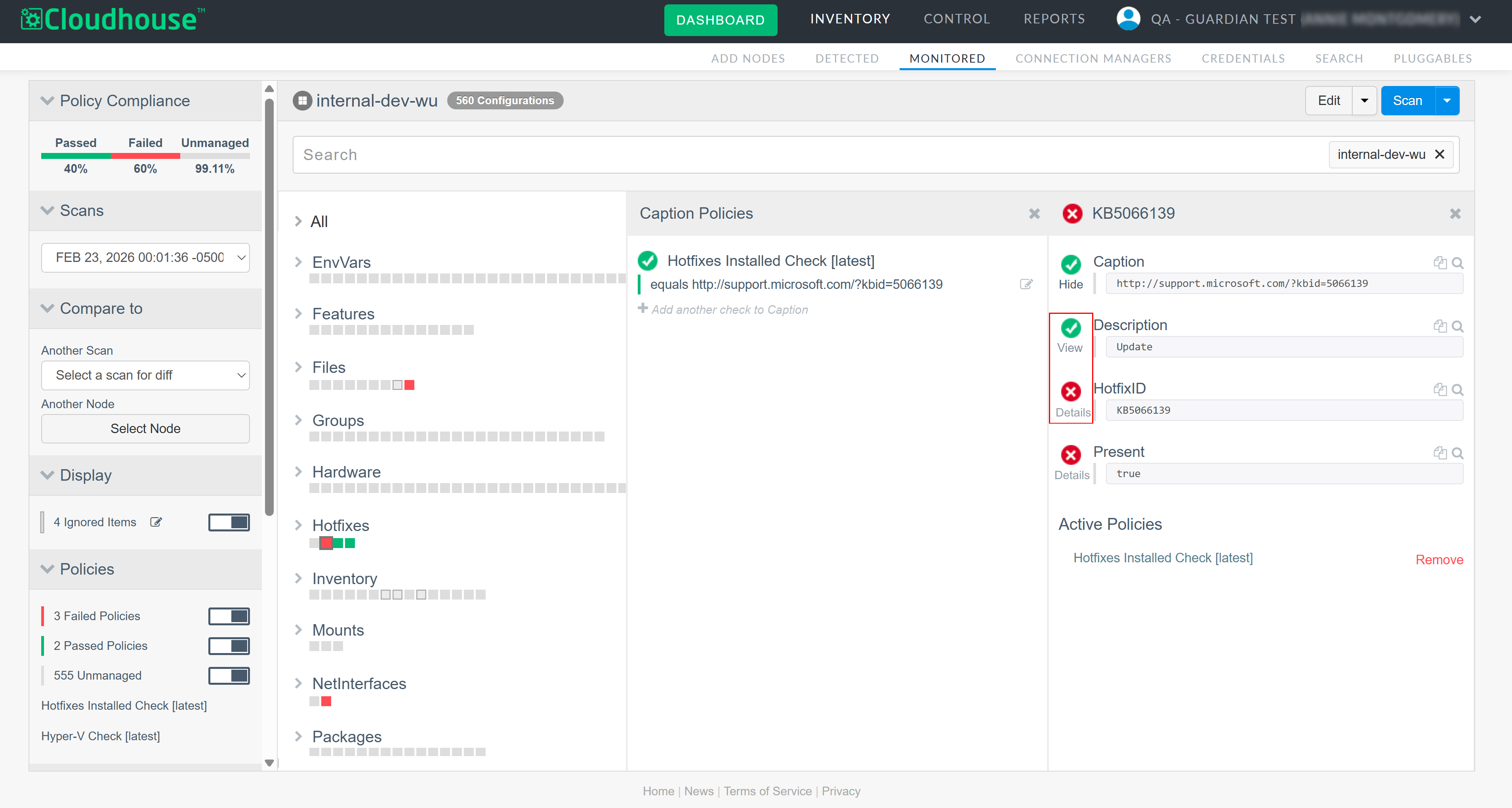
For passing checks, the panel now includes a View option, which displays further detail about what the check consists of and how its pass or fail state is determined. For failing checks, a Show Details option is displayed instead, along with a View notes option within the check background, allowing you to review additional failure information.
Policy UI Consistency Improvements
This enhancement improves clarity and usability when creating and editing policy checks by addressing inconsistent save interactions and minor visual issues in conditional drop-downs.
Tip: For more information on how to edit a policy, see Edit Policy.

Consistent Save and Cancel Actions
Editing different fields within a policy check currently displays different save mechanisms, such as labels, icons, or buttons, which can be confusing. All editable fields have now been updated to use clear and consistent 'Save' and 'Cancel' buttons, with no alternative or implicit save actions.
Correct Display of Comparison Operators
When selecting comparison operators (>, >=, <, <=) for conditional policy checks, the collapsed drop-down can truncate >= and <=. This has now been fixed so the selected value is always fully visible across all policy editing contexts.
Tip: For more information on conditional policy checks, see Checks.
Fixed Issues
The following issues have been fixed within this release of the Guardian web application.
| GWB-6358 – Inconsistent Filtering of Change Request ID in Change Report | |
|---|---|
| Affects Versions: V3.59 | Fix Version: V3.63.0 |
| Problem: |
On the Change Report tab (Reports > Change Report), filtering results using the Change Request ID field could lead to inconsistent and misleading behavior. When a Change Request ID was entered and a matching approved change selected, clearing the filter using the [x] icon did not fully reset the filter state. Instead: Tip: For more information on approving changes, see Approve Change.
This resulted in filters appearing active or inactive incorrectly, and made it difficult to understand or reset the current filter state. |
| Solution: |
The Change Request ID filter logic has been updated to ensure consistent and predictable behavior. You can now:
These changes ensure the Change Report accurately reflects the active filter state at all times and can be reset without manual intervention. |
| GWB-5263 – Hover Tooltip Not Displaying Full Node Name | |
|---|---|
| Affects Versions: V3 (onwards) | Fix Version: V3.63.0 |
| Problem: |
In the Monitored tab (Inventory > Monitored), when hovering your cursor over a node with a long name, a tooltip is displayed with the full name of the node. However, if the new Monitored skin was enabled, only the first 70 characters of the node's name was being displayed in the hover tooltip. |
| Solution: |
We have updated the logic in the new Monitored skin, enabling the hover tooltip to wrap and truncate to fit any node's name, regardless of the character count. Now, when hovering your cursor over a node within the new Monitored tab, a tooltip is displayed with the full node name as expected. Note: To enable the new Monitored skin, contact your Cloudhouse Representative. |
| GWB-5260 – Timeout When Filtering Job Schedule Page | |
|---|---|
| Affects Versions: V3 (onwards) | Fix Version: V3.63.0 |
| Problem: |
On the Job Schedule tab (Control > Job Schedule), filtering the list of scheduled jobs was resulting in a page timeout and console error. Note: This error was occurring when disabling an enabled job, enabling a disabled job, and changing the filter while a job is selected. Complete the following steps to replicate:
The Job Schedule page then times out and displays zero results. When the selected job was filtered out, Guardian incorrectly continued to treat the filtered-out job as selected. Note: Additionally, the options in the Edit drop-down remained enabled for the job that should not have been available within the UI. |
| Solution: |
The Job Schedule tab now correctly resets selection state when jobs are enabled, disabled, or filtered. Any selected job that is no longer visible after a filter or state change is automatically deselected, and edit actions are disabled accordingly. Now, you can filter the list of scheduled jobs as expected, with no timeout or console errors. |

| GWB-6495 – Unable to Edit or View Scheduled Job | |
|---|---|
| Affects Versions: V3.62.0 | Fix Version: V3.63.0 |
| Problem: |
On the Job Schedule tab, the scheduled job list initially displayed as expected. However, when selecting a scheduled job, or when attempting to edit a scheduled job using the checkbox and clicking Edit Maintenance Window, the job schedule failed to display. This prevented users from viewing or modifying the selected scheduled job. |
| Solution: |
The Job Schedule tab now correctly loads and displays the selected scheduled job when it is clicked or when the Edit Maintenance Window action is used. The job schedule view is consistently rendered, allowing users to edit or inspect scheduled jobs without display issues. Note: This fixed issue was implemented as part of a hotfix deployed on 20th February 2026. |